AI & control
Before uploading a client’s footage, trace where the AI goes
Desktop editing, cloud assistants and local models have different data paths. A clear way to check the workflow before handing it sensitive material.


An unreleased product demo does not become less confidential because it is only thirty seconds long. A training interview can contain employee names. A customer testimonial can show addresses on a background screen. Before using AI on a client project, the useful first question is where the material goes.
“Desktop app” is only part of the answer. An editor can keep the original video on your disk while sending a transcript or preview frame to a cloud assistant. A transcript may contain the exact information the client wanted to protect. Checking only whether the full video was uploaded misses that distinction.
Trace the workflow in plain language
List what happens from import to export. Where is the media stored? Where is speech transcribed? What does the assistant receive to plan the edit? Where are new images or voices generated? Where is the final video rendered? Each answer can involve a different service.
Write down those services by name rather than describing the whole chain as “AI.” If an assistant calls a hosted transcription endpoint and then a separate image service, there are multiple data paths to understand. Changing the assistant’s model does not automatically change every other service connected to the project.
Bhippi’s FAQ makes an important distinction: editing happens on your PC, but a cloud provider can receive information such as transcripts and preview frames used to plan the edit. [3] Choose the connection based on the work, not on an assumption that installing a desktop application makes all of its AI local.
Small pieces of context can still be sensitive
A preview frame can show a private interface, a customer name or a slide with sales figures. A transcript can reveal a product announcement before release. File names can identify a client or campaign. Sending a smaller representation is not the same as sending harmless information.
For a sensitive project, ask which context is actually necessary. If the AI only needs to shorten a title, it may not need the full interview. If the task involves visual judgement, a frame may be relevant, but the background can still contain material unrelated to the edit. Scope the task thoughtfully rather than assuming every available piece of context belongs in it.
The person responsible for the project should approve the chosen workflow. Use the client’s instructions and the service’s current terms to decide what is acceptable. This article is a practical way to inspect the path; it is not a claim that a particular configuration satisfies every contract or regulation.
What a local model changes
LM Studio documents running downloaded models and its local server without an internet connection. It also identifies operations that require connectivity, such as obtaining models. [1] That is a concrete distinction you can use: download and setup happen first, then inference can run locally with the model already present.
Whisper provides a local speech-recognition implementation. [2] Running a local transcription model and uploading audio to a hosted speech service are different workflows, even if both use similar model names. Look at the selected transcription route as well as the assistant route.
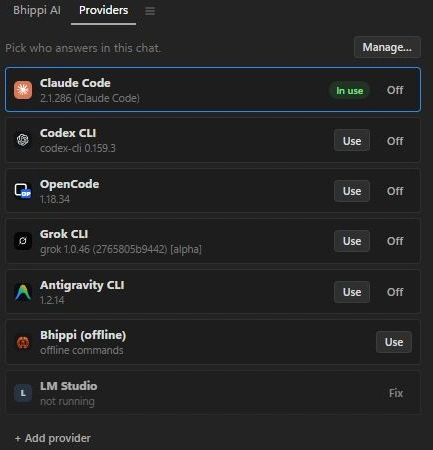
In Bhippi, Settings → AI providers is where you choose the assistant connection. Speech and local-media settings control other model-based work. For a workflow intended to stay local, check those choices together. Also avoid external research, downloads or cloud-generation tasks if the project’s requirements exclude them.
Local does not mean effortless
You need the model files before using them. A first download can be large, and model speed depends on your computer. Language-model planning, speech recognition and video generation have different hardware demands. Try the whole path with non-sensitive sample material before promising a client that it will work on location.
Bhippi’s licensing also has a defined offline window: it can keep working for 14 days without an internet connection after activation. That is separate from whether a downloaded AI model can run offline. Prepare both the application and the models before travelling to a place without reliable connectivity.
Keep enough disk space for sources, caches, generated material and exports. Local processing gives you more control over where work happens, but it does not automatically organise or back up the project. Preserve source media and make a usable copy of the project before major changes.
A five-question project check
- Are the original files stored where the client expects?
- Which assistant connection is selected: a local server or a cloud provider?
- Where do transcription, image generation, speech and other model tasks run?
- What context can leave the machine, including transcripts, frames and prompts?
- Can you finish and revise the project with the setup you have tested?
If an answer is unclear, test with material that does not expose the client. Inspect the settings and the provider’s documentation. Do not use a successful export as evidence of the network path: a video can render perfectly while the assistant used a cloud service earlier in the job.

Keep the choice visible
There are good reasons to use a cloud assistant on some projects and a local model on others. A public product teaser has different requirements from an internal research interview. The benefit is being able to choose deliberately and explain that choice to the person whose footage you are handling.
Bhippi lets you connect your AI providers and work with editable projects on your own PC. The current early-access offer gives you a free tester key; claim it and download now to keep Bhippi free for life. Provider charges, data policies and model requirements are separate from that software offer.
Before handing the system your next client video, draw the path once. Media in, analysis, assistant context, generation, render out. If you can explain each step without hiding behind the word “AI,” you are in a much better position to choose the right workflow.
Make the data boundary understandable to a collaborator
Write a plain-language note for the project: which material stays on your machine, which service receives any context, and which tasks you have chosen to run locally. A collaborator should be able to understand that note without knowing how the assistant is implemented. “We use a desktop editor” is not enough to describe an AI workflow.
Consider a harmless sample first when checking a new provider or local model setup. Verify that the intended route works, then decide whether it is suitable for the real material. If a task only needs a short transcript excerpt, do not assume the entire recording is necessary. If it requires images, make that requirement explicit before preparing them.
Review the boundary when the workflow changes. Adding a different provider, using an online generation service or sharing a project with somebody else can change the path of the material. Local processing is a useful choice for some tasks; clear, task-specific decisions make that choice practical.
FOLLOW THE EVIDENCE
Sources & notes
Checked October 1, 2026. Community posts describe individual experiences, not a representative survey. Vendor policies and pricing can change. Workflow examples are illustrative; these articles do not present a hands-on comparative benchmark. Bhippi publishes this blog and makes the editor discussed here.
- LM Studio: offline operation and local server Official documentation
Explains which operations stay local and which need internet access.
- Whisper: local speech-recognition project Official project documentation
A local implementation exists; a hosted transcription service is a separate data path.
- Bhippi: product and privacy FAQ Bhippi product information
Explains that a cloud AI provider can receive transcripts and preview frames used to plan an edit.